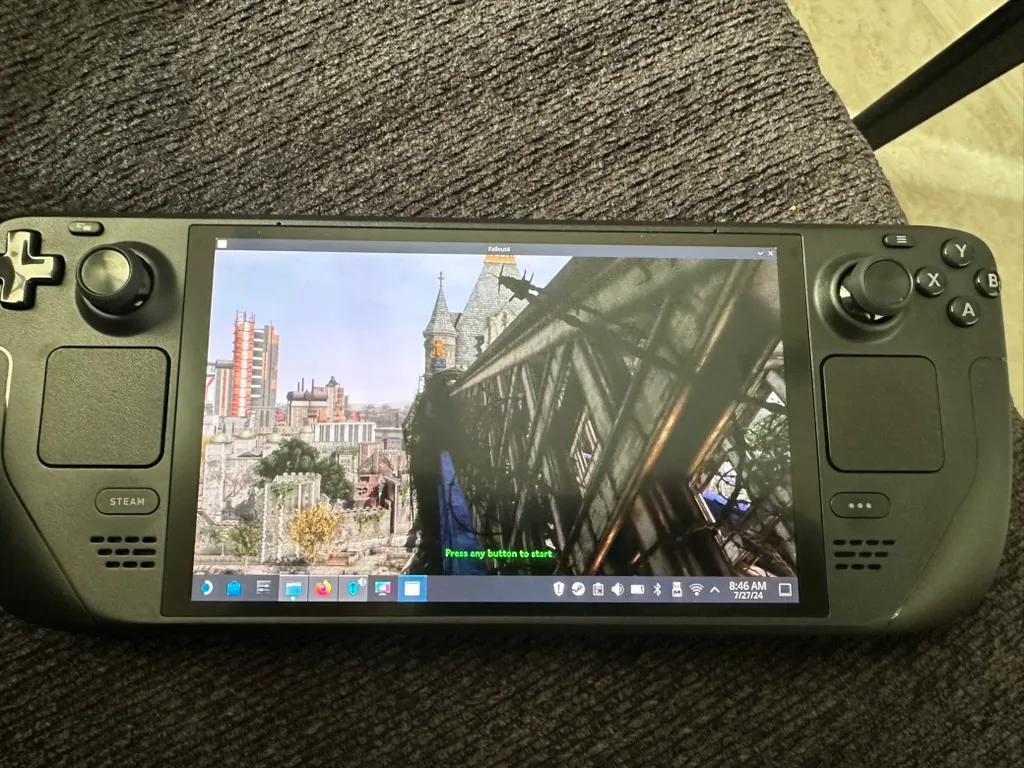
How To Install Fallout London on Steam Deck
I feel like we're all clamoring to get this up and running on our Steam Decks and I was no different. This guide is going to assume that you're using the GOG version of Fallout 4 GOTY Edition. I'll outline the quick steps that will get you up and running.
I feel like we’re all clamoring to get this up and running on our Steam Decks and I was no different. This guide is going to assume that you’re using the GOG version of Fallout 4 GOTY Edition. If you’re looking for how to set it up using the Steam version of Fallout 4,
Steam Deck HQ has you covered How to Play The Fallout 4: London Mod on Steam Deck. I’ll outline the quick steps that will get you up and running now and when I get a chance to pull the screenshots off my deck, I’ll add a more full explanation below.
As I play through the game and run into/fix items, I’ll be sure to update this post with the latest steps
Quick Steps
- Setup a GOG account
- Purchase Fallout 4 GOTY Edition
- Add Fallout London to your account
- Switch your Steam Deck to desktop mode
- Open the Discover app and download Heroic Games Launcher
- Launch Heroic Games Launcher
- Log into your GOG account
- Download and install Fallout 4 GOTY Edition
- If you see a pop up saying that it could not find the default wine option and it asks you if you want to use proton experimental, choose yes
- Launch Fallout 4 GOTY Edition which will finish setting up all of the required files
- Exit Fallout 4 GOTY Edition
- Download Fallout London
- Launch Fallout London
- You may see the same messaging about unable to find the default wine option, choose yes again
- When you get to the option to install, quit Fallout London. I had to actually quit Heroic Games Launcher entirely at this point so if you do as well, launch Heroic Games Launcher again. I had to do this so that it would set the winepath properly for me.
- On the Fallout London page, click the icon in the upper right that has the sliders on it (not the three dots)
- Scroll down to the bottom and click on WINECFG
- Click on the Drives tab in the new window that opens
- Click on the add button and choose a letter, the choice here does not matter
- For the new drive letter you just added, change the path to
/home/deck. - Click OK and close out of the wine settings
- Click on WINETRICKS (note if you don’t see this repeat the steps to get to where you saw WINECFG, this button will be next to it)
- Select the default wine prefix
- Select the top option of install a Windows DLL
- You’re looking for
faudioin this list. I had to click on one which showed the scrollbar on the right and then I could grab that scrollbar to find it. - Check the box for
faudioand click OK - Now launch Fallout London
- It will warn you that it could not find your Fallout 4 installation, choose the option to change location
- In the window that pops up, on the left hand side, you’ll see a list of drive letters, choose the one you set in the previous steps (mine was D:)
- Navigate through the folders until you’re inside of
Games/Heroic/Fallout 4 GOTY - Click install
- Once installed, close Fallout London and Heroic Games Launcher
- Open up the file browser
- Navigate to your home folder then
Games/Heroic/Prefixes/Default/Fallout London/pfx/drive_c/users/steamuser/Documents/My Games/Fallout 4 - Delete the file
Fallout4Prefs.iniandFallout4.ini, or you can rename them to have.bakextensions if you’re like me and can’t delete things - Download this Fallout 4 Steam Deck INI file and save it to the location where you just deleted the original
Fallout4.inifile - You should now see just a folder called
F4SEand thisFallout4.inifile - Register for an account on Nexus Mods
- Manually download the Buffout 4 mod
- Open your downloads folder in the file browser
- Extract the package for the Buffout 4 mod
- Enter the
F4SE/Pluginsfolder - Copy the folder
Buffout4as well as the filesBuffout4_preload.txtandBuffout4.dll - Navigate to the folder
Games/Heroic/Prefixes/Default/Fallout London/pfx/drive_c/users/steamuser/Documents/My Games/Fallout 4/F4SE/Plugins - Paste the Buffout files and folder here
- Enter the
Buffout4folder - Double click on
config.tomlto open it - On, or around, line 25, change
MemoryManager = truetoMemoryManager = falseand save the file - Close file browser
- Open Heroic Games Launcher
- Launch Fallout London
- Quit Fallout London
- Switch back to Game Mode and leave Desktop Mode behind
- Launch Heroic Games Launcher
- Go to Fallout London but don’t launch it just yet
- Click the icon in the upper right with the three dots (not the slider one from before)
- Click Add to Steam
- Restart your SteamDeck
- You can now launch Fallout London directly from Steam without having to go through Heroic Games Launcher anymore!
See you on the wasteland!
Full Setup
Screenshots coming soon!